
5 Common Mistakes in Printed Materials
Discover the top 5 common printing mistakes and how to handle them effectively on our website. Learn valuable tips and tricks for a flawless printing experience.
5 Common Mistakes in Printed Materials
A Comprehensive Guide to Checking and Processing Design Files
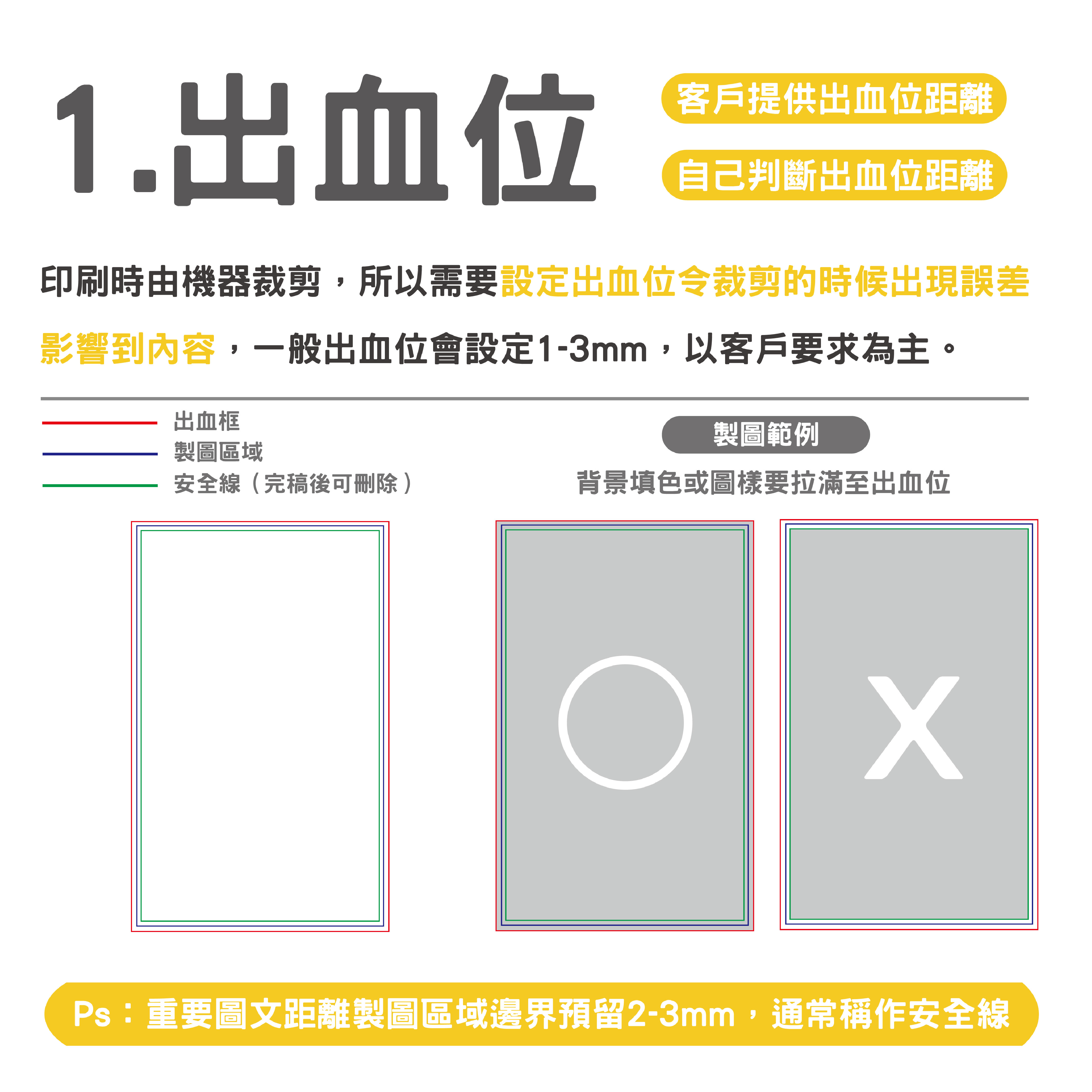
If the bleed is not set in your print file, it may result in a white border or a part of the design being cut out of the finished product. Especially if the background of the design is white, the white edges are less noticeable, but the design elements may be affected.
To avoid such problems, it is important to allow a 1 to 2 mm bleed border for your printed files.
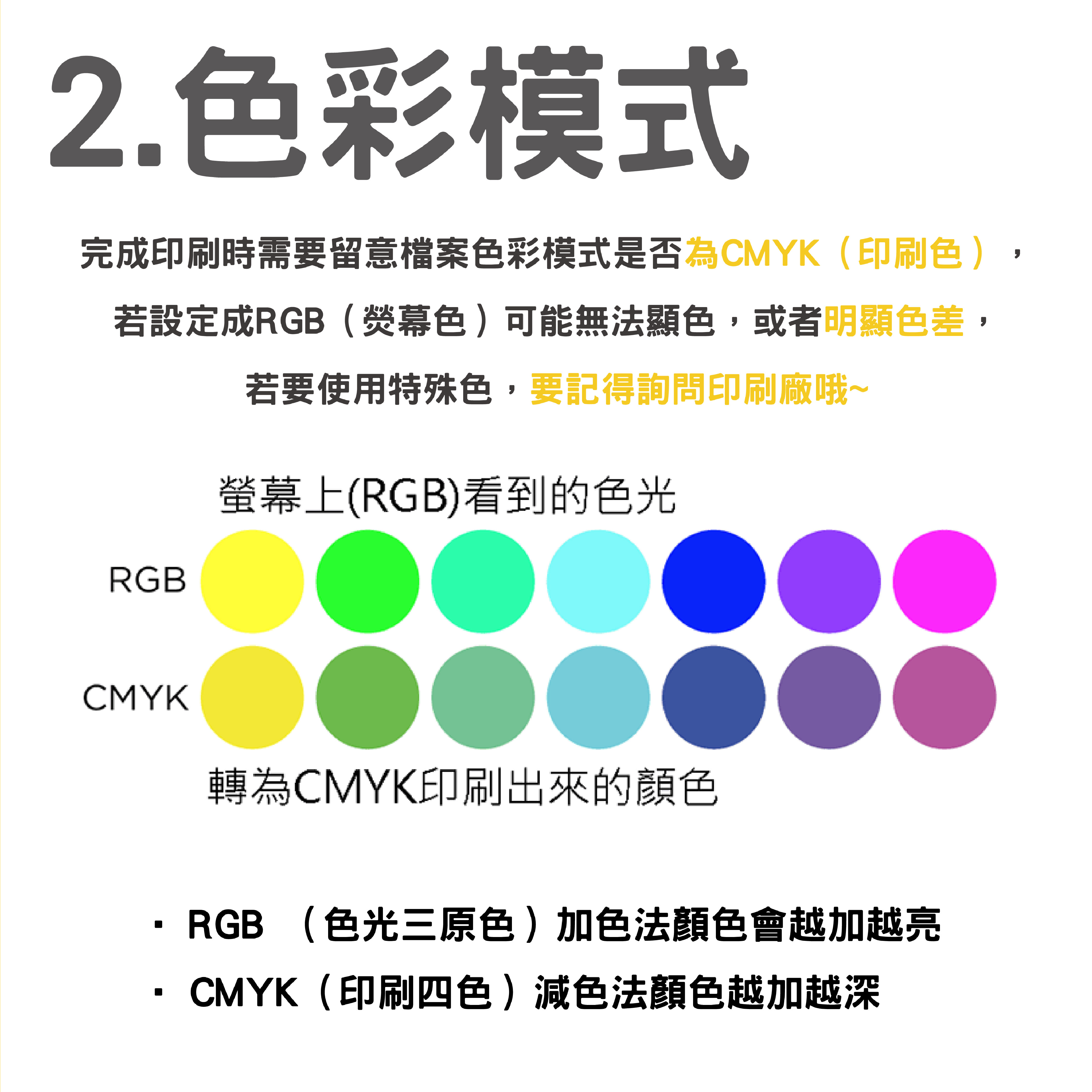
As most images are shot in RGB colour mode, this is different from the CMYK colour mode required for printing. Printing directly from RGB images may result in bright colours in the finished product, losing some of the realism. Converting the image to CMYK colour mode is a critical step in ensuring that the print results are as expected.
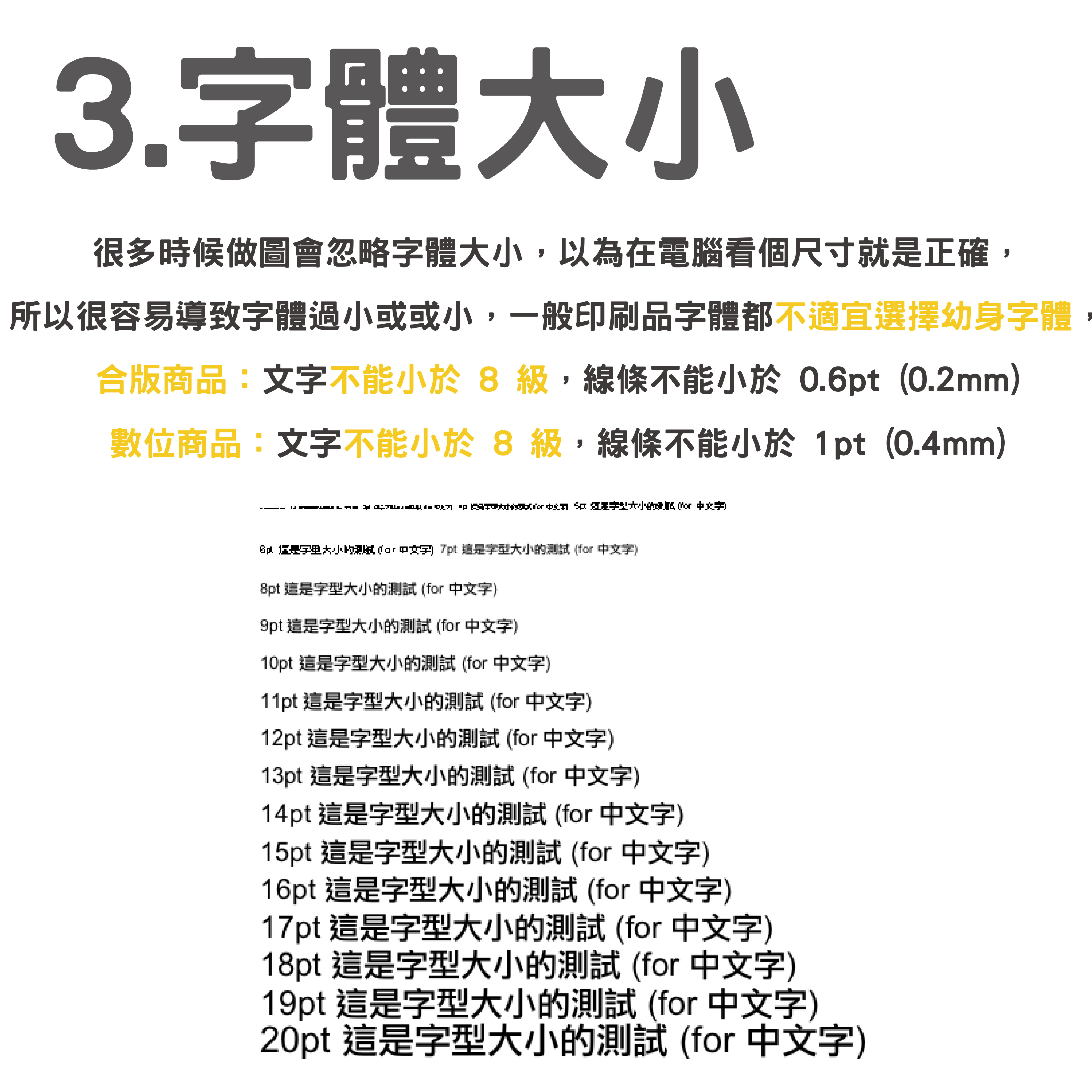
Depending on the type of printing, there are specific design specifications to follow. For composite printing, the text size should be no smaller than 8 dots and the line thickness should be no smaller than 0.6 dots (about 0.2 mm). For digital printing, the text should be no smaller than 8 dots and the lines no smaller than 1 dot (about 0.4 mm) to avoid burrs or blurring.
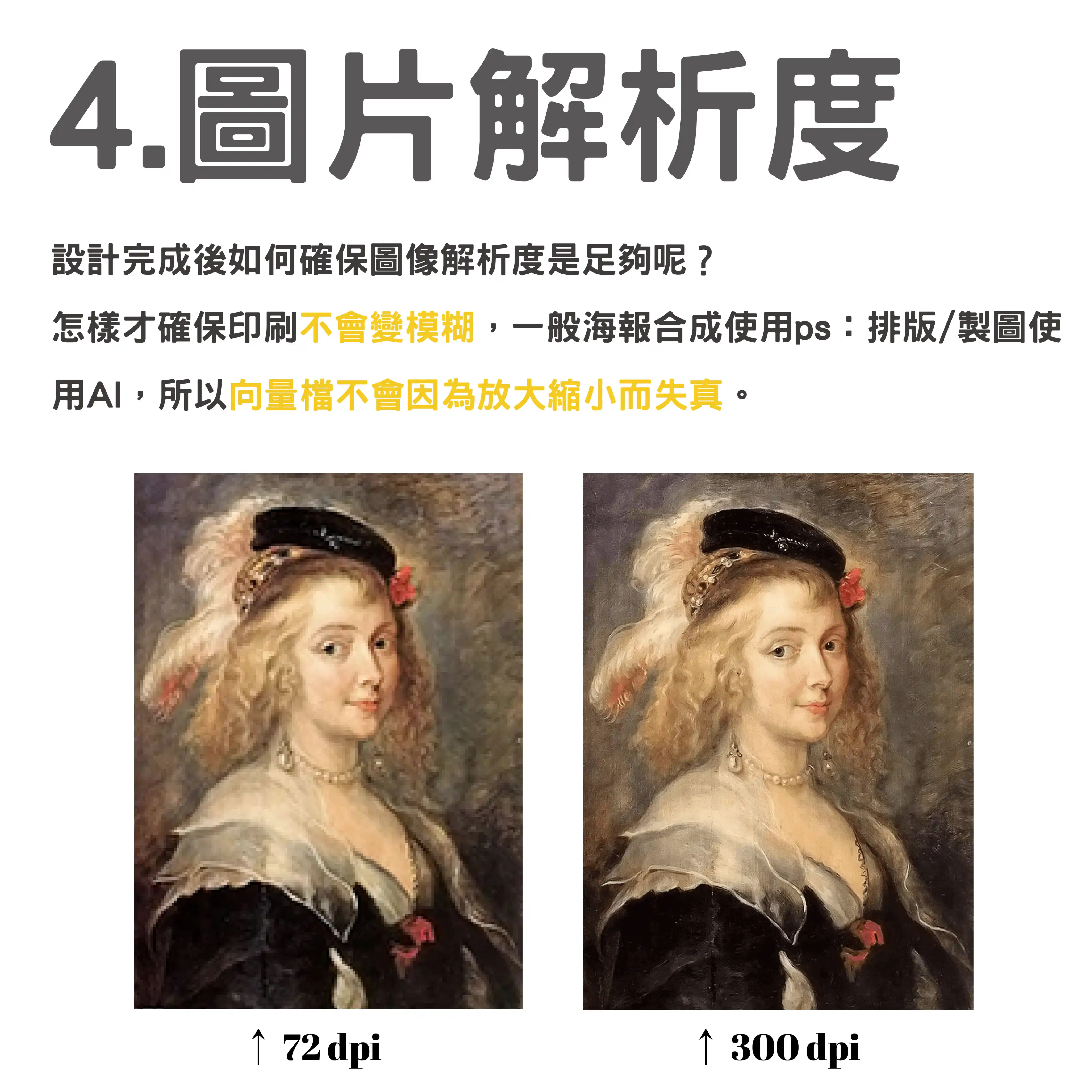
Low resolution images will result in pixelation of the image on the print, which will affect the clarity. To ensure print quality, all inserted images should maintain a resolution of 300 dpi or higher to ensure no distortion even when enlarged.
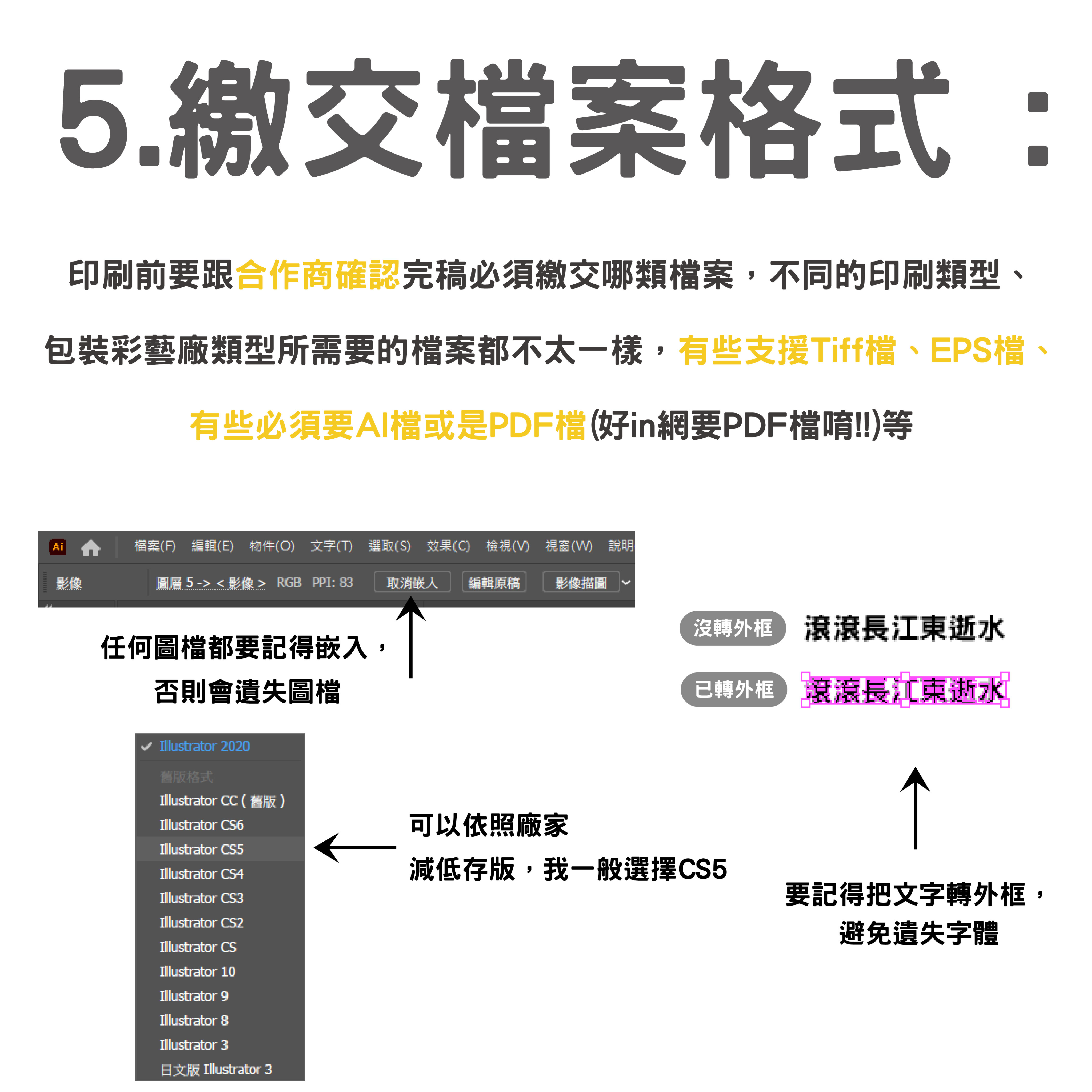
Failure to create a frame for the font
Failure to convert text to a frame in a design is a common mistake that can result in a font that does not match the original design when printed. When using non-system fonts, you should ensure that the text is converted to a frame to avoid problems caused by font mismatches.
In Adobe Illustrator, you can "build the frame" by selecting the text and using the shortcut Ctrl+Shift+O (Windows) or Command⌘+Shift+O (Mac).
Missing drawings/ files that need to be embedded
Unembedded drawings and files: Missing the embedding steps for drawings or files may cause your design files to appear imperfect by displaying the wrong visual effect on different devices. When using Adobe Illustrator, it is important to click the Embed button at the bottom of the toolbar after dragging an image to the task panel to ensure that all images and files are embedded correctly in the design file.
Customised packaging adds more value to your brand